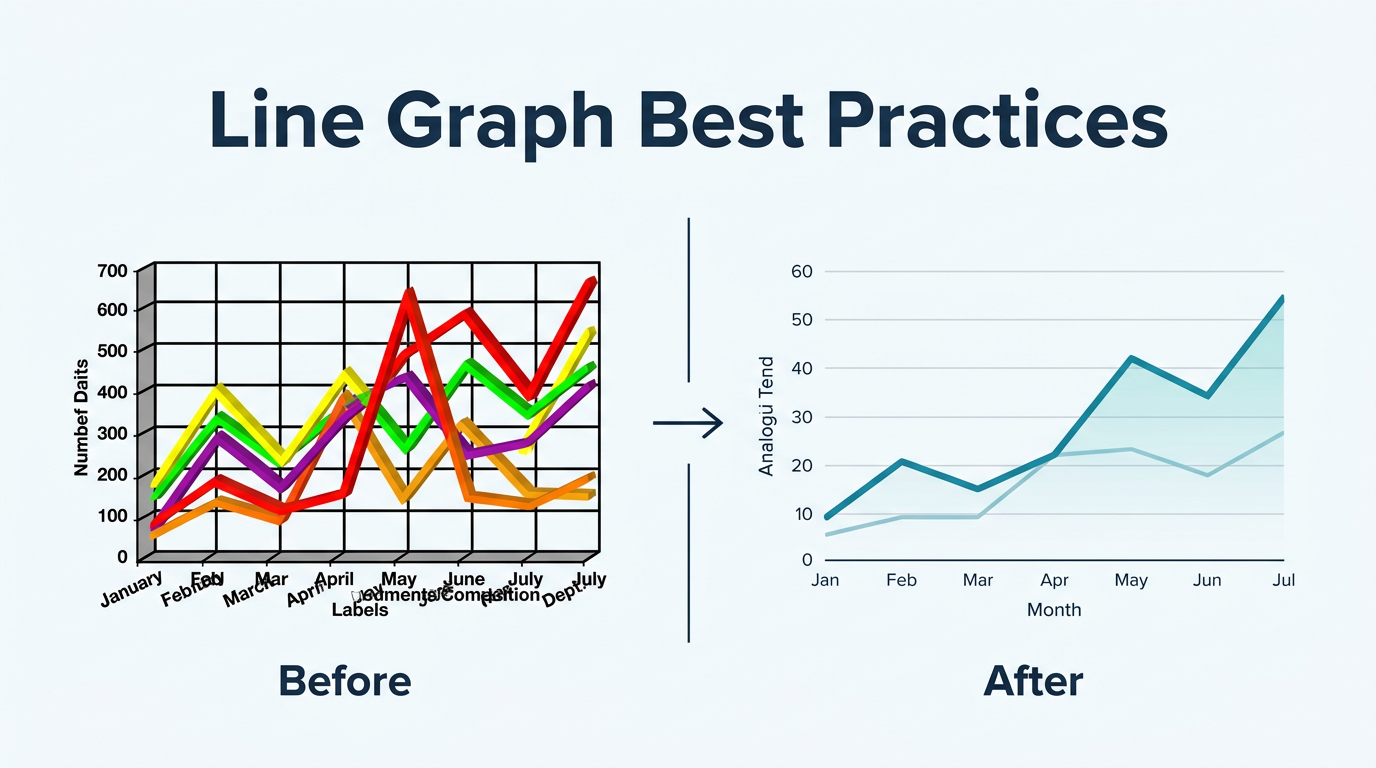
Line Graph Best Practices: Design Guide
A well-designed line graph communicates its insight in under five seconds. A poorly designed one leaves the audience squinting, confused, or worse — misled. The difference is not artistic talent; it is a set of principles that anyone can learn.
This guide covers the design decisions that matter most when building line graphs for professional settings: board presentations, quarterly reports, analyst dashboards, and academic publications.
Start With the Message, Not the Data
Before touching any tool, answer one question: What is the single insight this chart should communicate?
- "Revenue is growing 15% month-over-month."
- "Churn spiked after the pricing change."
- "All four regions are converging toward the same performance level."
If you cannot state the insight in one sentence, the chart will not communicate it either. Every design decision that follows — axis range, number of series, annotation placement — should serve that one sentence.
Axis Design
Always Label Both Axes
This sounds obvious, but unlabeled axes are the single most common chart mistake in business presentations. Include:
- What is measured (Revenue, Temperature, Users)
- The unit ($, °C, count)
- The time period if not obvious from the title (Monthly, Daily, FY2024)
Y-Axis: To Zero or Not to Zero
Start at zero when you want honest proportions and the audience should judge absolute magnitude.
Truncate the axis when the data range is narrow relative to the baseline and the trend is the message. A stock price fluctuating between $148 and $152 is unreadable on a 0–$200 scale.
The rule: If truncating changes the story, start at zero. If truncating reveals the story, truncate — but clearly mark the axis with a break symbol (⌇) and mention it in the subtitle.
X-Axis: Date Format and Density
- Use consistent date formats (Jan, Feb, Mar — not January, 02/2024, March).
- At 12 data points, show every label. At 52+, show every 4th or monthly.
- For multi-year data, show the year transition clearly (2023 | 2024).
- Angled labels should be a last resort — reduce density first.
Avoid Dual Y-Axes Unless Absolutely Necessary
Dual y-axes (left and right) are the most misused chart feature in business. They let you overlay two series with different units — but the visual correlation between the lines is entirely an artifact of how you scale the two axes.
If you must use them: Make the scales clearly labeled, use visually distinct line styles (solid vs. dashed), and include a footnote explaining that the scales are independent.
Better alternatives: Normalize both series to percentage change from a baseline, or use two stacked charts sharing the same x-axis.
Color and Line Styling
Use a Maximum of 5–7 Colors
Beyond that, colors become indistinguishable — especially on projectors and for color-blind viewers (8% of men).
Color assignment rules:
- Most important series: Strongest, darkest color.
- Reference or benchmark: Gray or muted tone.
- Positive/negative semantic: Use sparingly (green for good, red for bad) — only when the meaning is unambiguous.
Design for Color Blindness
10% of your male audience cannot distinguish red from green. Use:
- Different line styles (solid, dashed, dotted) in addition to color.
- High-contrast palette: Blue/orange, blue/yellow, or purple/green pass most color blindness tests.
- Direct labels on lines instead of relying on a color legend.
Line Weight and Style
- Primary series: 2–3px solid line.
- Secondary or reference series: 1.5px dashed or lighter color.
- Forecast or projected data: Dashed or dotted extension from the last actual point.
- Confidence bands: Semi-transparent fill (10–20% opacity) around the main line. See our confidence band line chart guide for a worked example.
Data Point Markers
- ≤20 points per series: Show markers. Each point carries individual meaning.
- 20–100 points: Optional. Show markers only if specific points need emphasis.
- 100+ points: Hide markers. The line shape is the message.
Annotation and Context
Title and Subtitle
The title should state what the chart shows. The subtitle should state why it matters or provide the key insight.
| Weak | Strong |
|---|---|
| "Revenue" | "Monthly Revenue, FY2024" |
| "Users Over Time" | "Daily Active Users Crossed 1M in October" |
| "Performance" | "Response Time Dropped 40% After Redis Migration" |
The subtitle is your chance to editorialize — guide the reader to the insight you want them to take away.
Annotations on the Chart
Add annotations for events that explain unusual patterns:
- Vertical lines for point-in-time events (product launch, policy change, outage).
- Horizontal lines for targets or thresholds (budget limit, SLA, historical average).
- Call-out boxes for critical data points that need exact values.
Do not over-annotate. Three to five annotations per chart is a good limit. If every point needs explanation, the chart is trying to tell too many stories.
Legend Placement
- Inline labels (text directly on or next to the line) are the most readable because the eye does not need to travel to a separate legend and back.
- Top legend works well for 2–5 series.
- Bottom or side legend for 5–7 series.
- No legend needed for single-series charts — the title covers it.
Data Density and Simplification
The Principle of Progressive Disclosure
- Slide in a board deck: One line, one insight, large text. 5-second read.
- Page in a written report: 2–3 lines with legend and brief commentary. 30-second read.
- Interactive dashboard: Full detail with hover, zoom, and filter. Unlimited exploration.
Design for the context. A chart that works on a dashboard will fail on a slide.
When to Aggregate
| Raw Data | Aggregate To | When |
|---|---|---|
| Per-minute readings | Hourly averages | More than 7 days of data |
| Daily metrics | Weekly averages | More than 3 months |
| Weekly metrics | Monthly totals | More than 1 year |
| Monthly metrics | Quarterly totals | More than 5 years |
Aggregation reduces noise and makes the trend visible. Always disclose the aggregation level ("Weekly average" or "Monthly total").
Rolling Averages
For noisy daily data, a 7-day or 30-day rolling average line overlaid on the raw data is a powerful technique:
- Raw data in light, low-opacity color shows actual values.
- Rolling average in bold color shows the true trend.
- The reader sees both the signal (rolling average) and the noise (raw data).
Common Design Mistakes
Mistake 1: Spaghetti Charts
Too many lines (8+) on one chart creates an unreadable tangle. Solutions:
- Small multiples: One small chart per series, same axes.
- Highlight + gray: Bold one series, gray out the rest.
- Interactive filter: Let the viewer choose which series to display.
Mistake 2: Chart Junk
3D effects, gradient fills, decorative icons, and thick borders add visual weight without information. Edward Tufte calls this "chart junk." Remove anything that does not encode data.
Mistake 3: Misleading Area Fills
Filling the area under a line can accidentally imply volume or cumulative totals when the data is simply a rate or level. Only fill the area when magnitude emphasis is intentional and the fill does not obscure other series. If volume is your real message, build it directly in our free area chart maker.
Mistake 4: Inconsistent Time Intervals
Plotting monthly data with gaps (January, March, June) on an evenly-spaced x-axis implies that the gaps do not exist. If your data has irregular intervals, either:
- Use a true time-proportional x-axis (gaps appear visually).
- Fill in missing periods with null values (gaps in the line).
- Aggregate to a regular interval.
Mistake 5: Missing Context
A line going up is meaningless without context. Is it going up fast or slow? Compared to what? Add at least one reference point: a target line, last year's performance, industry average, or a simple annotation stating the growth rate.
Platform-Specific Tips
For PowerPoint / Google Slides
- Maximum 2–3 series per chart.
- Title font ≥ 24pt; axis labels ≥ 14pt.
- Remove grid lines or use very light gray.
- Center the chart with generous margins.
- Animate series entry if presenting live (one line at a time builds narrative).
For Written Reports (PDF, Word)
- Include a caption below the chart explaining the insight.
- Reference the chart in the body text ("As Figure 3 shows...").
- Use consistent styling across all charts in the document.
- Export at 300 DPI for print quality.
For Dashboards
- Design for scanning: title + one key number + small chart.
- Use sparklines for space-constrained KPIs.
- Provide drill-down: clicking the chart opens a detailed view.
- Set axis ranges consistently across similar metrics.
For Social Media
- Optimize for mobile: large labels, minimal legend.
- Include the key insight in the image itself (subtitle or annotation).
- Use 1:1 or 4:5 aspect ratio for Instagram/LinkedIn.
- Brand subtly: logo in corner, not overlapping data.
Build Better Line Graphs
With Line Graph Maker, you can apply all these best practices:
- Upload your data and choose a line chart.
- Customize title, subtitle, and axis labels.
- Adjust colors, line styles, and marker visibility.
- Add reference lines for targets or averages.
- Export as high-resolution PNG or SVG for presentations and reports.
The tool is free, requires no login, and produces publication-quality charts in minutes.
Frequently Asked Questions
What is the ideal aspect ratio for a line graph?
16:9 for presentations (matches widescreen slides), 4:3 for reports and print, and 1:1 or 4:5 for social media. Wider ratios emphasize the time axis; taller ratios emphasize the y-axis magnitude.
Should I use gridlines?
Light, subtle gridlines help readers estimate values. Bold gridlines compete with the data. Use horizontal gridlines only (they align with the y-axis), set them to very light gray (e.g., #E5E5E5), and remove vertical gridlines unless the x-axis values need precise reading.
How do I handle negative values in a line graph?
Extend the y-axis below zero and include a clearly visible zero line. Color-code above and below zero if the distinction matters (e.g., profit in blue, loss in red). Make sure the zero line is visually prominent so the reader knows where positive ends and negative begins.
What font should I use for chart labels?
Sans-serif fonts (Inter, Roboto, Helvetica, Arial) are most readable at small sizes. Use the same font family as the rest of your document or presentation for consistency. Minimum 10pt for axis labels, 12pt for titles in print, larger for projected presentations.
How do I make a line graph accessible?
Beyond color-blind-safe palettes: (1) include alt text describing the chart and its key insight, (2) provide a data table alongside for screen readers, (3) use patterns or line styles in addition to color, (4) ensure sufficient contrast between lines and background (WCAG 2.1 AA requires 3:1 for non-text elements).
When should I use animation in a line graph?
In live presentations, animating lines to draw left-to-right builds narrative tension. In documents and dashboards, animation is distracting and slows down consumption. Never animate a chart that needs to be read quickly.
How do I cite a line graph in an academic paper?
Include: (1) "Figure N:" with a descriptive caption, (2) data source with access date, (3) note any transformations (log scale, rolling average, indexing). The chart should be reproducible from the caption alone.
Share this article
Help others discover this content
Published on April 21, 2026
Last updated on July 21, 2026